 SyncFlow
Fitbit and Apple Watch steps counted twice? How to check and fix it
Short answer
If your Fitbit and Apple Watch steps look doubled, open Data Sources & Access under Steps in the Health app and check which sources are listed and in what order.
A high total does not always mean the two devices' steps were added together. Check the display order first, then the individual saved records.
First, compare steps for one day
If you wear both a Fitbit and an Apple Watch, the Health app on your iPhone does not simply add the two step counts. Where the times overlap, Health uses the steps from the source higher in the list (Apple Support).
Pick one day and compare these three things.
| What to check | Where to look |
|---|---|
| Steps your Fitbit counted | That day's steps in the Google Health (Fitbit) app |
| The total Health shows | Health: Browse, then Activity, then Steps, for that day |
| Which devices and apps recorded steps | Data Sources & Access at the bottom of the Steps screen |
A difference in steps alone does not tell you whether the devices measure differently or whether Health is using a different source. If the Health total is clearly higher than either device on some day, go to the next section and check that day's sources and their order.
If your Fitbit steps are missing from Health instead, the steps are not doubled; they have not arrived. Check that Google Health has that day's steps and that Google Health has permission to write steps to Health.
Check the sources and their order
- In Health, tap Browse, then Activity, then Steps.
- Scroll to the bottom and tap Data Sources & Access.
- Check whether Apple Watch and Google Health are both listed. Google Health writes your Fitbit steps, so the name is Google Health, not Fitbit.
- Tap Edit. Touch and hold the Change Order button next to a source and drag the one you want to prefer to the top, then tap Done. If you want the Apple Watch to count your daytime steps, put it above Google Health.
- Go back to Steps and look at the same day again.
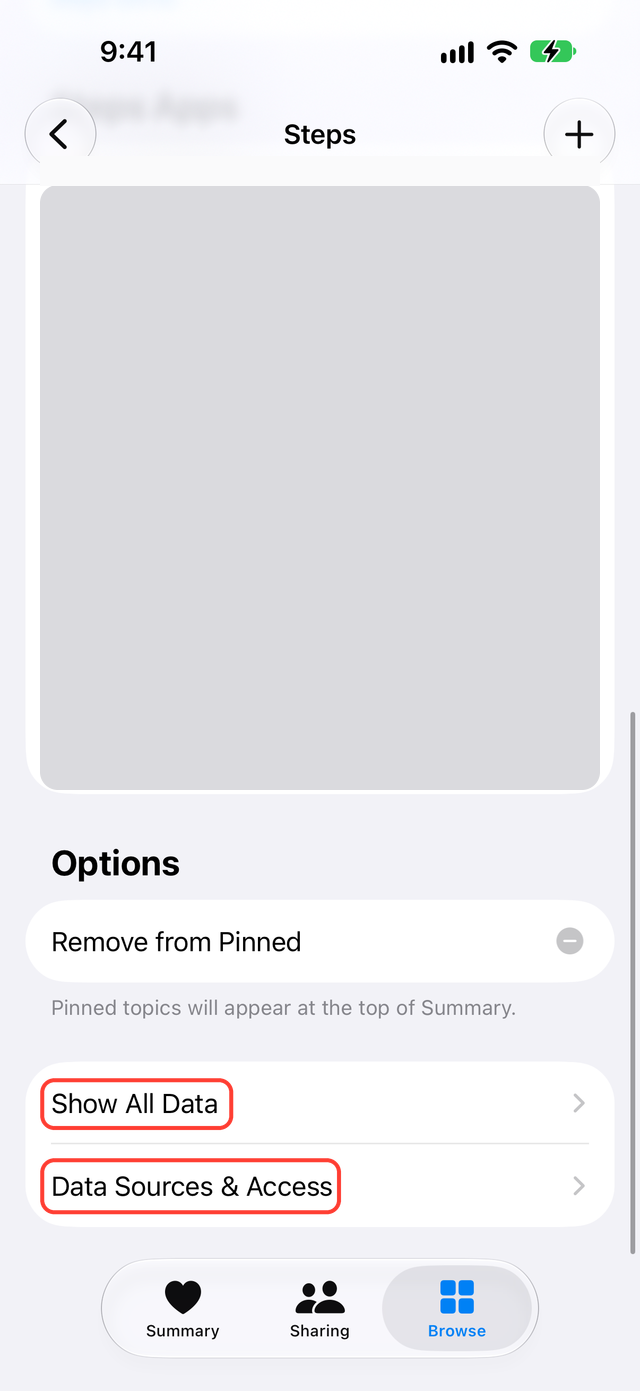
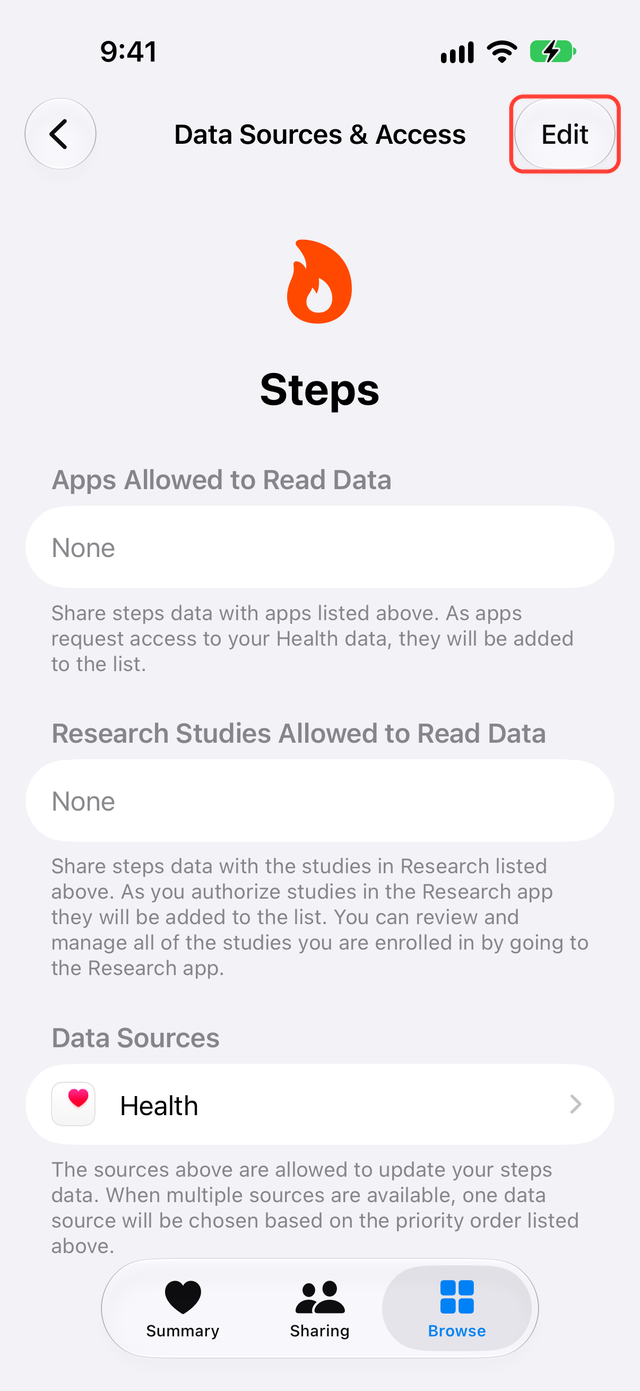
A newly added app goes to the top of the list. Right after you connect Google Health, it is often above the Apple Watch, so your Fitbit steps take priority.
This changes which source Health prefers when it adds up steps. It does not delete any saved records.
If steps are still too high
At the bottom of the Steps screen, open Show All Data and look at which apps wrote records for that date.
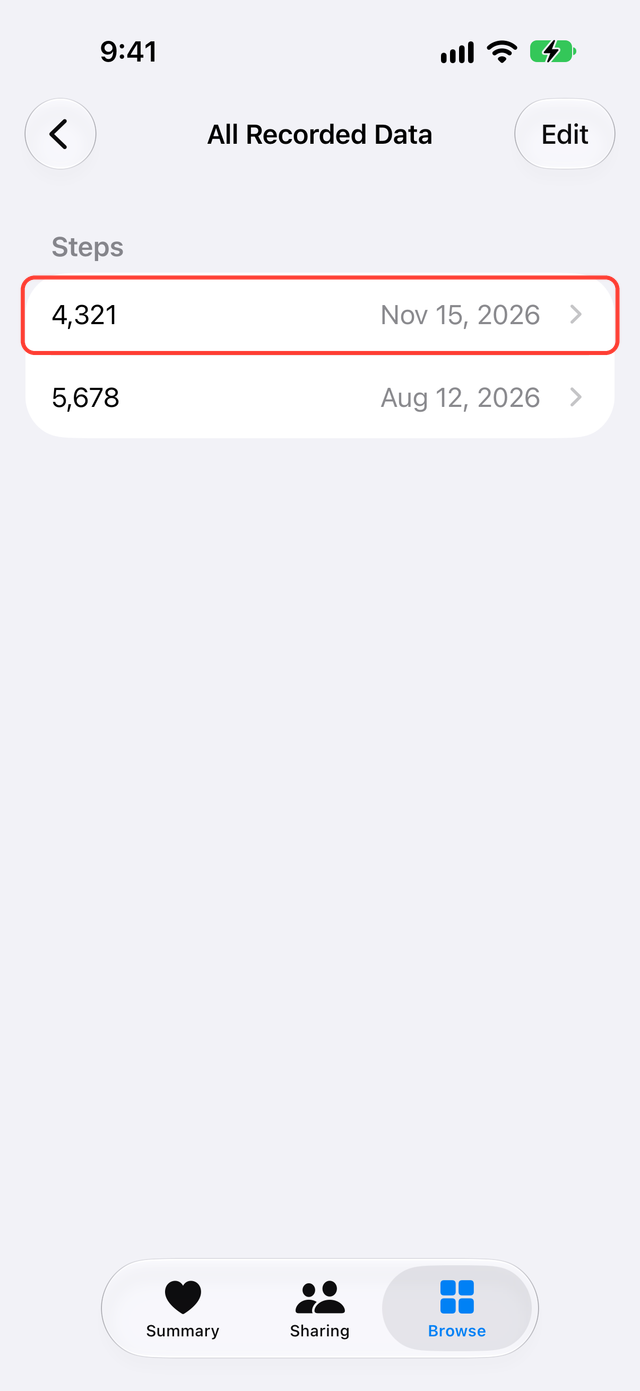
If you used another Fitbit sync app before, both that app and Google Health may have written steps. Some apps save one record for the whole day, and others save separate records by time of day.
Having several records does not mean the total is doubled. Look at each record's time and app name to find which one is raising the total. Also check a recent date to see whether your earlier sync app is still writing steps.
Should you delete the old records?
Not until you know the cause. You could lose earlier steps or records another app uses.
Check the source order first, and look at individual records only if the total is still high. You do not need to change your sleep or heart rate settings.
What SyncFlow can do
SyncFlow connects to Google Health and writes your Fitbit steps to Health. Steps for the last 30 days are free.
If both the Google Health connection and SyncFlow write the same Fitbit steps, Health has two sources. Which one it uses follows the order you checked on this page. To make that easier to read, use only one of them to write steps.
In SyncFlow's Categories, a Data Source Priority notice shows how to check sources in Health. The order itself is set in Health. SyncFlow does not clean up or delete steps saved by your Apple Watch or other apps.