 SyncFlow
How to get Fitbit Air data into the iPhone Health app
Short answer
You can get your Fitbit Air steps, sleep and heart rate into the iPhone Health app.
The Google Health (Fitbit) app on your iPhone writes your Fitbit Air records to Health. Connect Google Health to Apple Health and allow the data types you want, and you do not need another sync app.
What you need
- An iPhone with iOS 16.4 or later
- The latest Google Health app (the app you used to set up Fitbit Air)
- A Google account for an adult
Connect in Google Health
These steps and labels follow Google Health's Apple Health help.
- Open the Google Health app, tap the account icon (your profile picture) at the top right, then Partner apps.
- Under Add connections, tap Apple Health, then tap Get started.
- Read the consent page and tap Agree.
- On the Health permissions screen, turn on the data types you want in Health, then tap Allow. Turn All Categories On allows everything at once.
- On the confirmation page, tap Done.
You can change each permission later. If you want to use Pokémon Sleep, allow sleep at a minimum.
Check that it arrived in Health
Google's help does not say how far back before you connected the app writes records. Check records Fitbit Air measured after you connected.
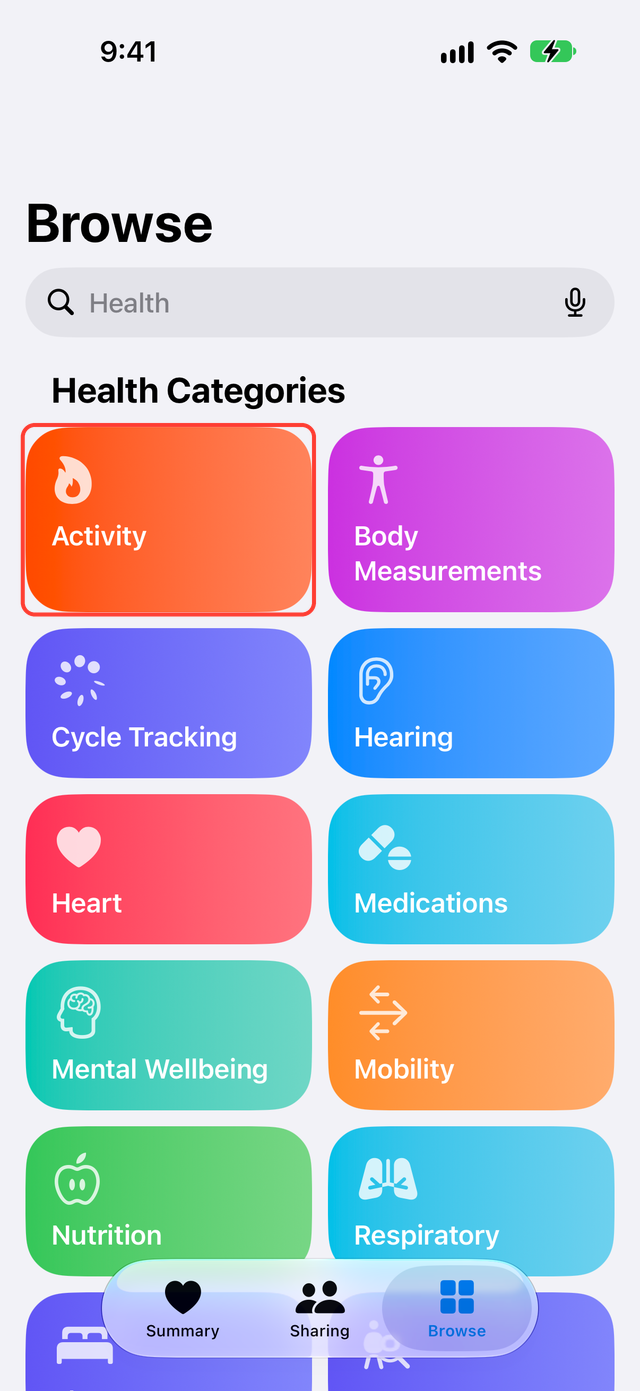
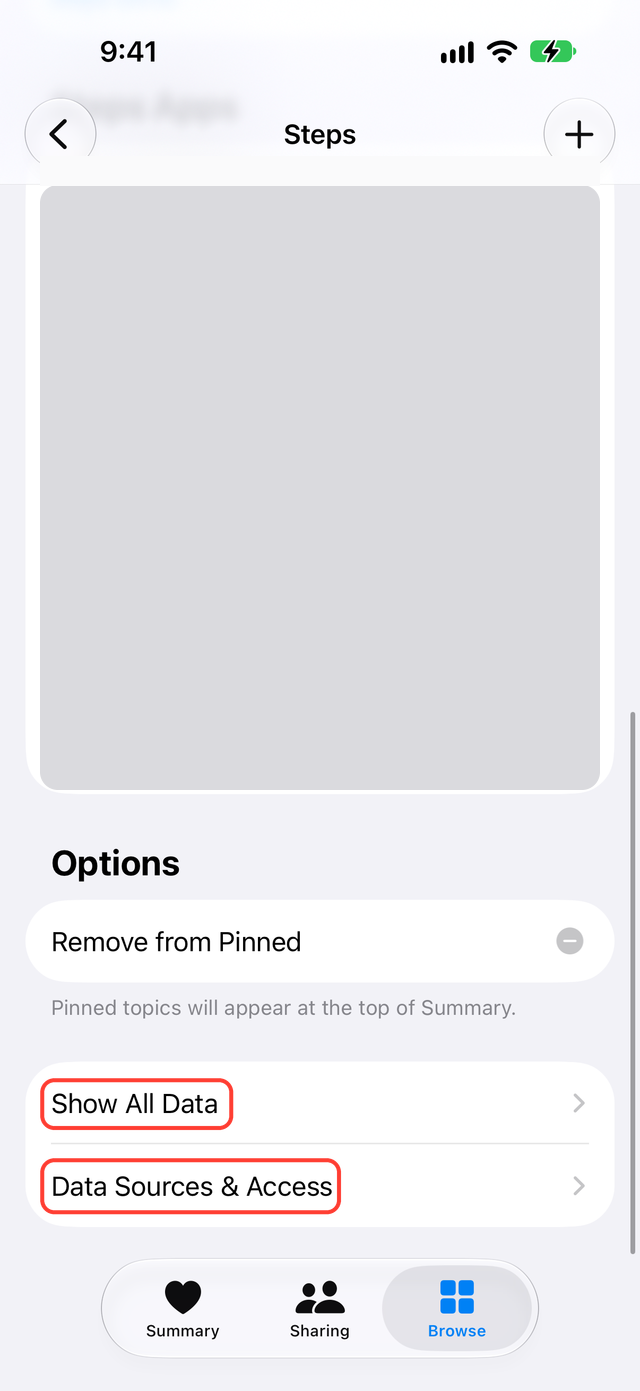
For steps, you can check the same day. In Health, tap Browse, then Activity, then Steps. At the bottom, open Show All Data and look for a record that Google Health wrote today. The total also uses your iPhone and Apple Watch, so it may not match the Google Health app.
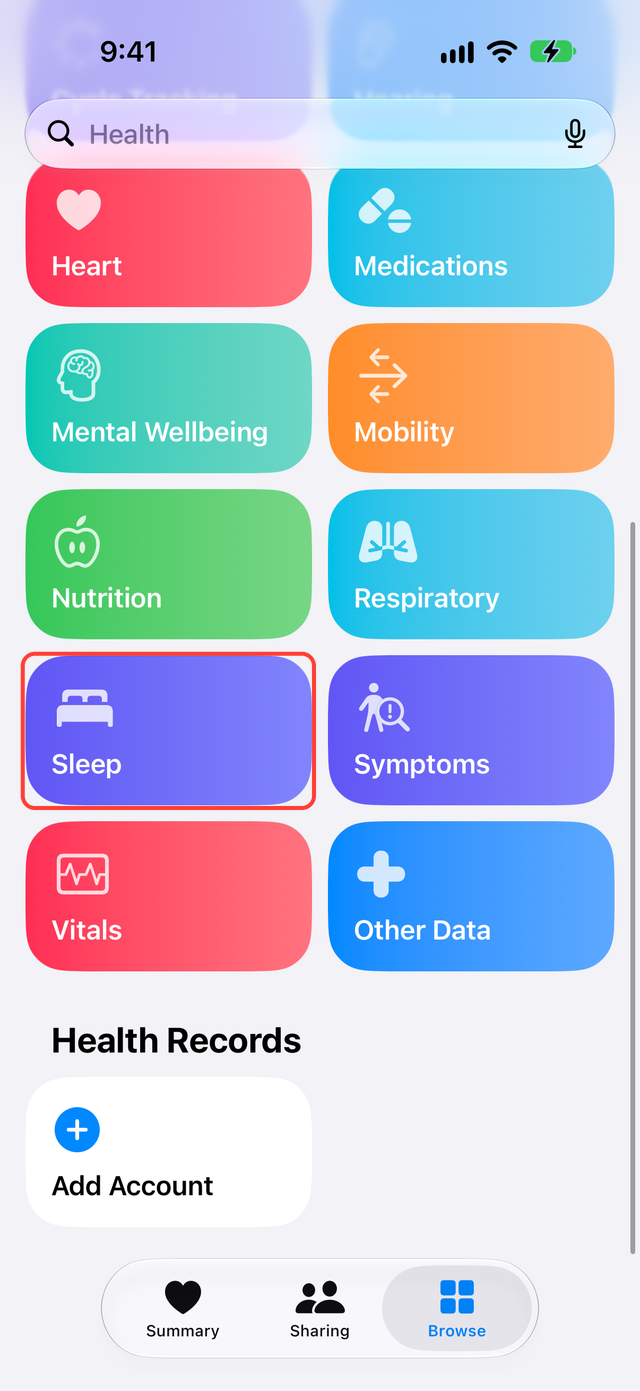
For sleep, check the next morning. Wear your Fitbit Air to bed after connecting, then open Browse, then Sleep in Health and look for last night.
What reaches Health
Of the data Google Health writes to Health, these are the types Fitbit Air records:
- Steps, distance, active calories and exercise
- Sleep, including sleep stages
- Heart rate, resting heart rate, oxygen saturation and respiratory rate
Heart rate variability (HRV) and skin temperature do not reach Health through this connection. In Google's table they appear only on the side Google Health reads from Health.
Google Health can also write weight, body fat, nutrition and cycle records to Health. These do not come from Fitbit Air. They arrive only if you logged them in Google Health, for example from a scale or by hand. The full list of writable data is in Google's table.
Use it with Pokémon Sleep
Pokémon Sleep on iPhone can import Fitbit sleep. Your sleep goes from Fitbit Air through Google Health and Health to Pokémon Sleep.
Pokémon Sleep's support pages give two steps:
- Connect Google Health to Health as above, and allow sleep.
- In Pokémon Sleep, open Main Menu > Settings and More > Pair a Device, tap Pair a Device again, and follow the prompts to grant Health access and finish pairing.
Link Pokémon Sleep to Health before you sleep with Fitbit Air. It imports only sleep measured after linking, and only sleep with at least 90 minutes of sleep stages. If you edited a sleep record in Health, Pokémon Sleep may not import it (Pokémon Sleep support).
After you wake up, check that Health has the sleep first, then open Pokémon Sleep.
Steps with an Apple Watch
You can wear an Apple Watch by day and Fitbit Air at night.
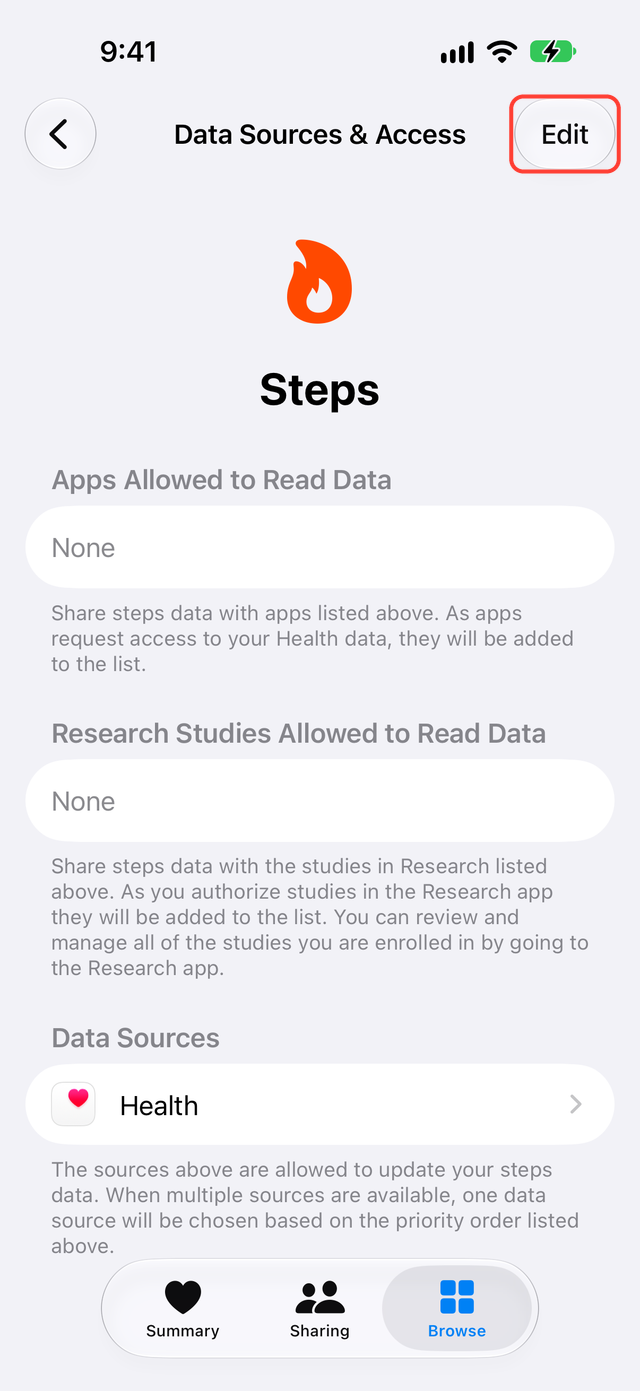
If you wore both at once, Apple Watch and Google Health both send steps for that time. Health uses the source at the top of the Data Sources & Access list. A newly added app goes to the top (Apple Support). Google Health writes the Fitbit Air records, so the list shows Google Health, not Fitbit Air.
If your steps look too high or too low after connecting, open Browse, then Activity, then Steps, then Data Sources & Access, then Edit. To prefer your Apple Watch, move it above Google Health.
If it does not reach Health or Pokémon Sleep
Check these three in order:
- Does Google Health have that day's record? If not, check that Fitbit Air measured it and that it synced with Google Health.
- Does Show All Data in Health show a record from Google Health? Check as in the section above.
- If Health has the record but another app does not show it, check that the app has permission to read Health. For Pokémon Sleep, review the import conditions above.
If you cannot find the record in step 2, try these in order:
- Update Google Health in the App Store.
- In Health, tap your profile picture, tap Apps under Privacy, tap Google Health, and check that the missing data type is turned on.
- In Google Health, tap the account icon (your profile picture) at the top right, then Partner apps. Under Connected, tap Apple Health, then Manage data and access, and review the permissions. If a "New data types available" notice appears, allow those too.
- If you see "Couldn't connect with Apple Health," check that your iPhone is online and try again later.
If you reinstalled Google Health, connect and grant permissions again.
What SyncFlow can do
If the Google Health connection already brings in what you need, keep using it.
After SyncFlow 3.0.0 is released, you can also connect SyncFlow to Google Health and sync your Fitbit Air steps and sleep to Health. Steps, sleep and weight for the last 30 days are free. Records older than 30 days and Auto Sync need Premium, which costs $9.99 per month or $39.99 per year, with no free trial.