 SyncFlow
How to auto-sync Fitbit data to Apple Health, and its limits
Short answer
To pass your Fitbit data to Apple Health automatically, connect the Google Health (Fitbit) app to Apple Health and allow it to write the data you want.
First check that new steps appear in both Google Health and Apple Health. Automatic writing can take a while, and arrival at a fixed time is not guaranteed.
Connect in the Google Health app
The Google Health app can write your Fitbit steps and sleep to Apple Health. Once you set it up, you do not have to move anything by hand.
- Open the Google Health app. Tap the account icon (your profile picture) at the top right, then Partner apps.
- Under Add connections, tap Apple Health, then tap Get started.
- Read the consent page and tap Agree. Tap Turn All Categories On, or turn on only the categories you want and tap Allow.
- On the confirmation page, tap Done.
The screen names follow Google's Apple Health help.
Check once that records arrive
A connection that looks fine does not prove that records arrived. Check with steps on the day you set it up.
- In Google Health, look at today's steps. If the number is old, tap the device pill at the top left of the Today screen and then the small sync button at the right end of the heading above your device.
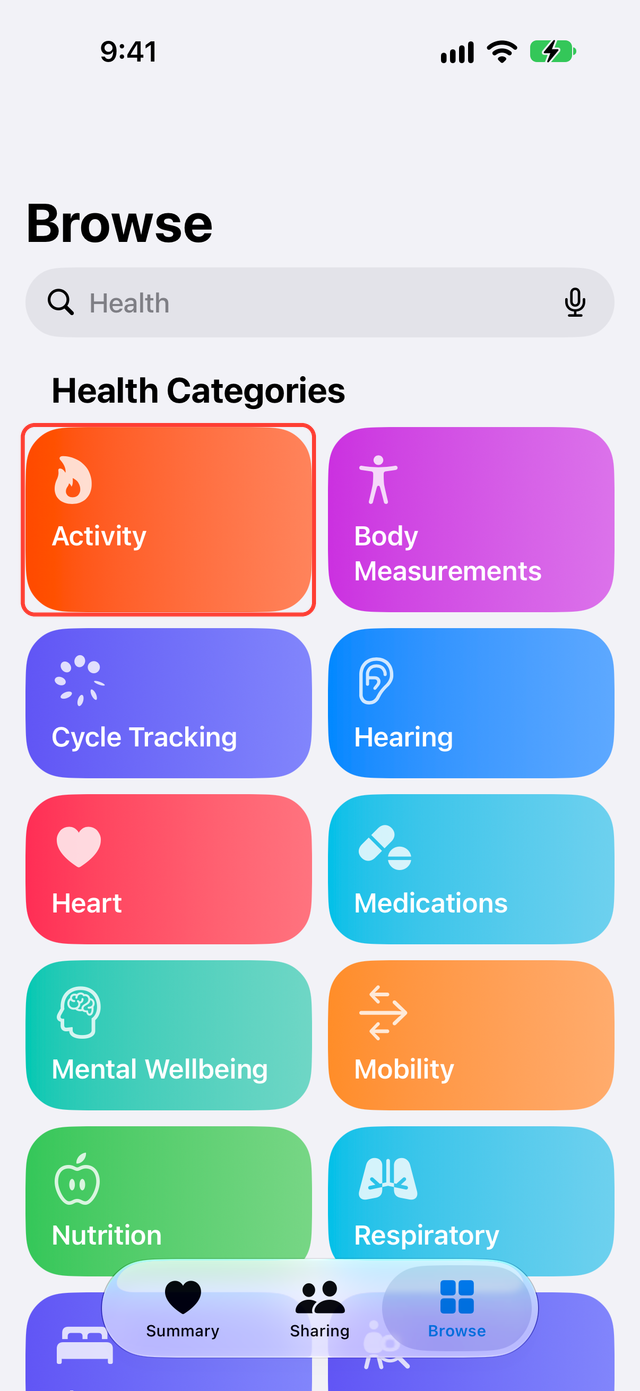
- In the Health app, tap Browse, then Activity, then Steps. Scroll to the bottom and tap Show All Data to find today's record written by Google Health.
If you use sleep, check last night's record in both Google Health and Health the next morning. A recent last sync time for the device in Google Health does not mean the record reached Apple Health. Compare the same date in both apps.
How often do records arrive?
Google's help gives no interval such as every 15 minutes, and no time such as "by 7 a.m." Arrival depends on how long your Fitbit takes to send records to Google Health and on when your iPhone lets the app run in the background.
Judge by whether the record is there when you need it: steps during the day, sleep the next morning. If updates feel slow, first check that the record for that date exists.
If it worked yesterday and stopped
| Where does it stop? | What to check |
|---|---|
| Google Health has no record for today | Check the connection between your Fitbit and iPhone, then tap the device pill at the top left of the Today screen in Google Health and the sync button at the right end of the heading above your device to sync again |
| Google Health has it, Apple Health does not | In Google Health, open Partner apps and check the write permissions for Apple Health |
| Apple Health has a record but the number differs | Open Data Sources & Access under Steps and look at other sources such as your iPhone or Apple Watch |
| It stopped after you reinstalled the app | Connect Google Health and Apple Health again |
Also check that Background App Refresh is on for Google Health under Settings, General, and that Google Health has Bluetooth access under Settings, Privacy & Security, Bluetooth. Google's iPhone and iPad sync help has the steps.
What SyncFlow can do
If Google Health's automatic writing is enough, you do not need another app.
SyncFlow is an app that connects to Google Health and syncs your Fitbit records to Apple Health. It works in two ways:
- Manual sync: free. From Home, sync steps, sleep and weight for the last 30 days. Manual sync works once a day, and you can watch a video to sync again.
- Auto Sync: part of Premium. It updates the last three days without opening the app.
To use Auto Sync, choose the categories to sync, run one manual sync from Home, then turn on Auto Sync on the Sync tab. Leave SyncFlow in the app switcher. If you swipe it up to close it, Auto Sync does not run until you open the app again. The run time depends on your iPhone and is not guaranteed.
After an Auto Sync, Sync History shows what was brought in.