How to use Auto Sync (Beta)
Auto Sync lets you sync data without opening the app.
What it does
Sync your selected categories for today and the previous two days. Use manual sync for older data.
Set up in 3 steps
- Choose your categories, then tap sync on Home and let the first sync finish. If it fails, check Sync History and try again.
- Open Settings → Auto Sync and turn it on.
- Turn on “Notify on completed sync” and allow iPhone notifications to receive completion updates.
Timing and notifications
Starts are planned around these six times daily (your device’s local time). iOS may delay or skip a run.
- Around 3:00
- Around 7:00
- Around 11:00
- Around 15:00
- Around 19:00
- Around 23:00
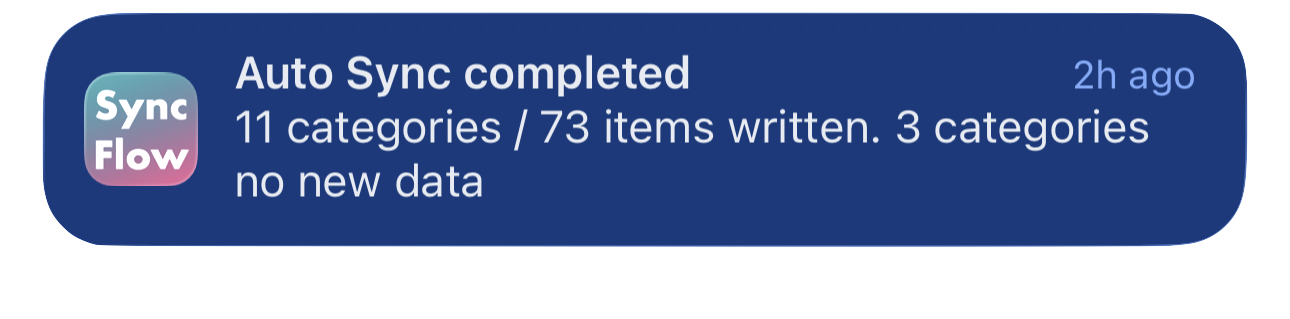
A notification appears when new data syncs. Check Sync History for results, even if no notification arrives.
If something goes wrong
- App closed: If you swipe SyncFlow away from the recent apps screen, Auto Sync will not run until you open it again. Leave the app in the background instead.
- Not starting: open the app once and check iPhone Settings → General → Background App Refresh.
- Failure in history: sync manually with an internet connection. Follow prompts to sign in again or allow Apple Health access. If it persists, contact support in the app.
- No notification: check the result in Sync History, then check notification settings in the app and on your iPhone.