 SyncFlow
How to bring Fitbit sleep into Pokémon Sleep on iPhone
Short answer
On an iPhone, Pokémon Sleep can import sleep measured by your Fitbit through Google Health (Fitbit) and Apple Health.
The sleep must have started after you linked Pokémon Sleep with Health, and its sleep stages must add up to at least 90 minutes.
Check before you link
- A Fitbit that tracks sleep and works with Pokémon Sleep. See Pokémon Sleep's list of supported devices on iOS; older models are excluded.
- Your Fitbit set up in the Google Health app, and an Apple Health profile on your iPhone.
- To connect Google Health to Apple Health, you need an iPhone running iOS 16.4 or later and an adult Google Account.
Finish steps 1 and 2 below before you track tonight's sleep. Pokémon Sleep cannot import sleep that started before you linked it with Health.
Pokémon Sleep's support page describes what it can import. The sleep needs sleep stages, with the stages adding up to at least 90 minutes. A record with only sleep time cannot be used. Sleep you edited by hand may no longer import, so leave your records unedited.
1. Write sleep from Google Health to Apple Health
If you have not connected Google Health to Apple Health yet, tap the account icon (your profile picture) at the top right, then Partner apps. Under Add connections, tap Apple Health, then Get started, and follow Google's steps, or see How to get Fitbit Air data into the iPhone Health app. The connection steps are the same for Fitbit models other than Fitbit Air.
- In Google Health, tap the account icon (your profile picture) at the top right, then Partner apps. Check that Apple Health is under Connected and shows a recent sync time.
- Tap Apple Health, then Manage data and access, and allow writing sleep.
- In Health, tap your profile picture, tap Apps under Privacy, select Google Health, and make sure it can write sleep data.
2. Link Pokémon Sleep to Apple Health
These steps follow Pokémon Sleep's pairing guide. Do them before bedtime.
- On your iPhone, open Settings, tap Health, then Data Access & Devices, then Pokémon Sleep, and tap Turn On All.
- Open Pokémon Sleep. If you have finished the first-time tutorial, tap Pair a Device under Settings and More in the Main Menu. During the tutorial, tap Pair Device, then Pair Smartwatch.
- Tap Pair a Device, then Turn On All, then Allow, then Pair a Device again.
- When the confirmation screen appears, pairing is complete.
The data source is Google Health (for Fitbit), connected to Apple Health. If the screens differ from these steps, check Pokémon Sleep's FAQ about using more than one device.
3. The next morning, check that it works for sleep research
After linking, wear your Fitbit to sleep. In the morning, check the same night in three apps, in this order.
- In Google Health, check that last night's sleep has stages such as REM, light and deep. If it shows only sleep time, check how you wear the Fitbit and its battery.
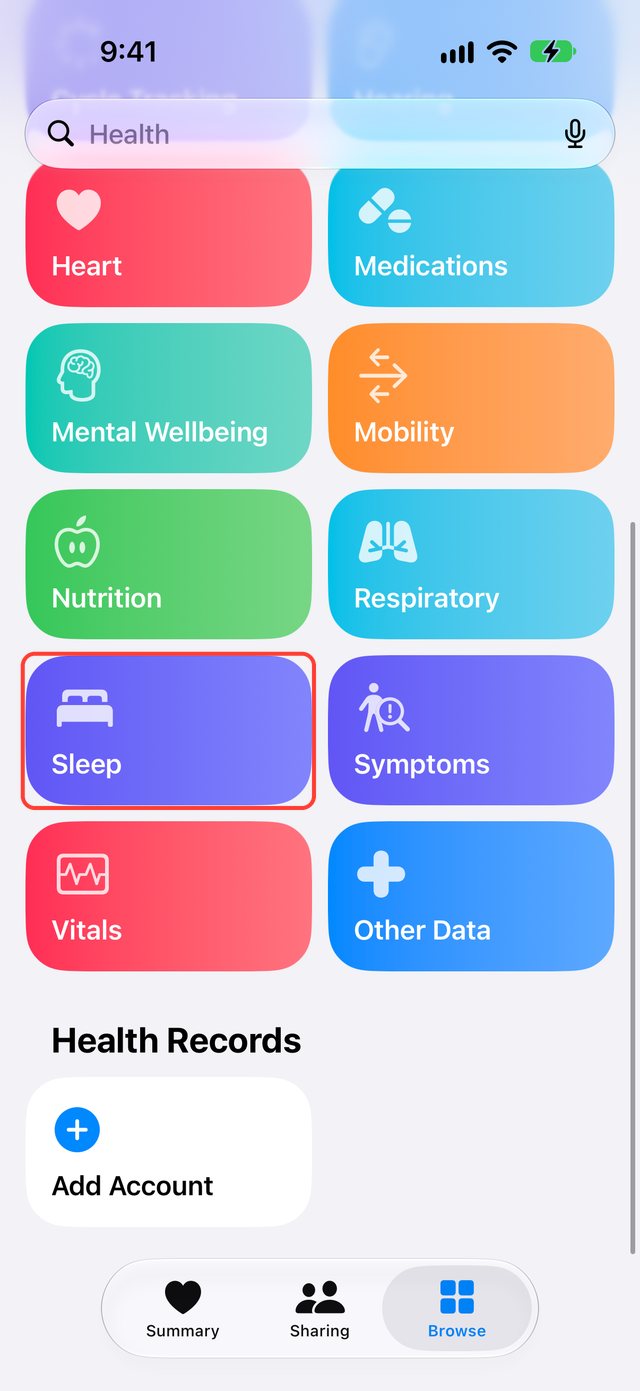
- In the Health app, tap Browse, then Sleep, open the same night, and check for sleep stages. At the bottom, check that Data Sources & Access lists Google Health.
- In Pokémon Sleep, tap Sync/Settings on the home screen, then Synchronize, and tap OK. Then tap Start to begin sleep research. If you also paired a Pokémon GO Plus +, tap Apple Health at the bottom of the home screen instead, then tap Synchronize and OK.
A sleep record in Health does not mean Pokémon Sleep imported it. Check all three.
If it does not import
| Symptom | What to check |
|---|---|
| Google Health has no sleep for last night | Whether your Fitbit tracked sleep and whether it synced with Google Health |
| Google Health has it, Health does not | The sleep write permission (step 1 above) |
| Sleep time but no stages | Whether the Fitbit was 2 to 3 finger widths above your wrist bone, whether the battery was low, and whether you slept at least 20 minutes (Google Health help). Sleep without stages cannot be used |
| Health has it, Pokémon Sleep does not | Whether tracking started after you linked, whether the stages total 90 minutes, whether Pokémon Sleep has Health access, and whether Google Health is the data source |
| You also use an Apple Watch or Pokémon GO Plus + | Which source Pokémon Sleep imports, and whether sleep from two sources overlaps |
You can pair a Pokémon GO Plus + and a smartwatch at the same time (Pokémon Sleep's announcement). For overlapping time, check the FAQ linked above for how Pokémon Sleep treats it.
If sleep will not import, do not delete or edit it. Check the next night's record in the same order.
What SyncFlow can do
SyncFlow can sync Google Health sleep to Health by stage: awake, REM, core and deep. Sleep is a free category, for the last 30 days. Sync History shows the result; free users see the latest day.
We have not confirmed whether Pokémon Sleep imports sleep written by SyncFlow. To use Pokémon Sleep, use the Google Health connection in steps 1 to 3 above.
References
- Pokémon Sleep: Fitbit devices can now pair on iOS
- Pokémon Sleep: How to pair with Apple Watch, Garmin, Fitbit (iOS)
- Pokémon Sleep Support: I can't import my smartwatch's sleep data (iOS)
- Pokémon Sleep Support: How to grant access permissions for Health
- Pokémon Sleep Support: Pairing multiple devices
- Google Health Help: About sleep stages
- Google Health Help: Use Apple Health with Google Health
- Apple Support: Manage Health data on your iPhone, iPad, or Apple Watch